
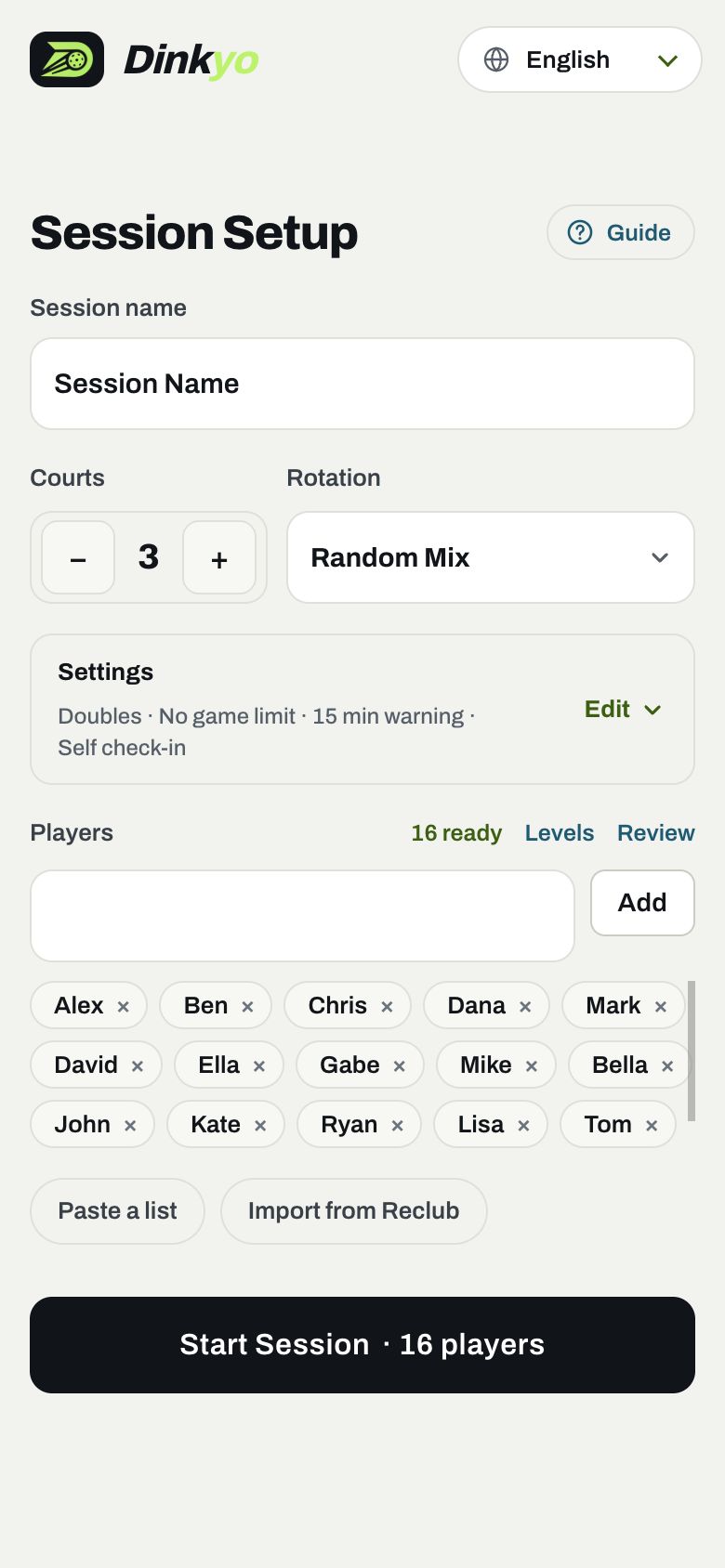
Start a session
The Session Setup page opens when you sign in. Fill it once and you're ready for the night.
- Type a Session Name, like "Thursday Open Play". Players see it on their phones and the TV.
- Set Courts with − + and pick a Rotation. Not sure? Keep Random Mix.
- Check Settings: Doubles or Singles, a games per player limit, a game time warning for long games, and self check-in (Off, I approve each, or Add automatically). On a phone, tap Edit to change them; on a computer they're all on the page.
- Add your players: type a name and press Enter, use Paste a list, or Import from Reclub with your meet code. Tap a name to fix it or set its level (Beginner, Novice or Intermediate); the × removes it.
- Tap Start Session. You need at least 4 players for doubles, 2 for singles. On a computer, your players are listed on the right, with Start Session at the bottom.
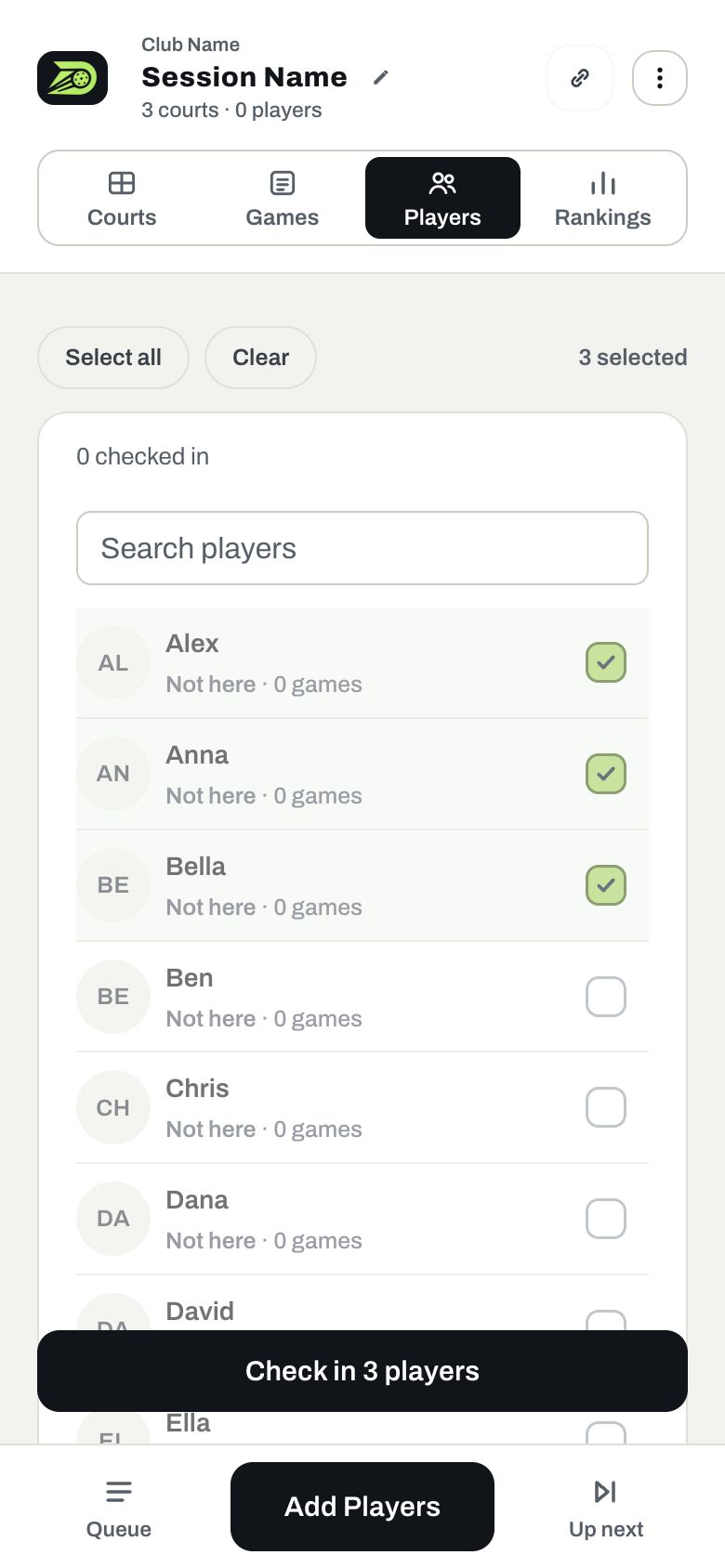
Check players in
Open the Players tab as people arrive.
- Tick each player who has arrived, or tap Select all. Clear unticks everyone.
- Tap Check in 3 players. They join the queue and can be drawn for games.
- Someone new walks in? Tap Add Players and type their name. They're checked in right away.
- Someone leaving early? Tap Check out. They keep their record and can come back later.
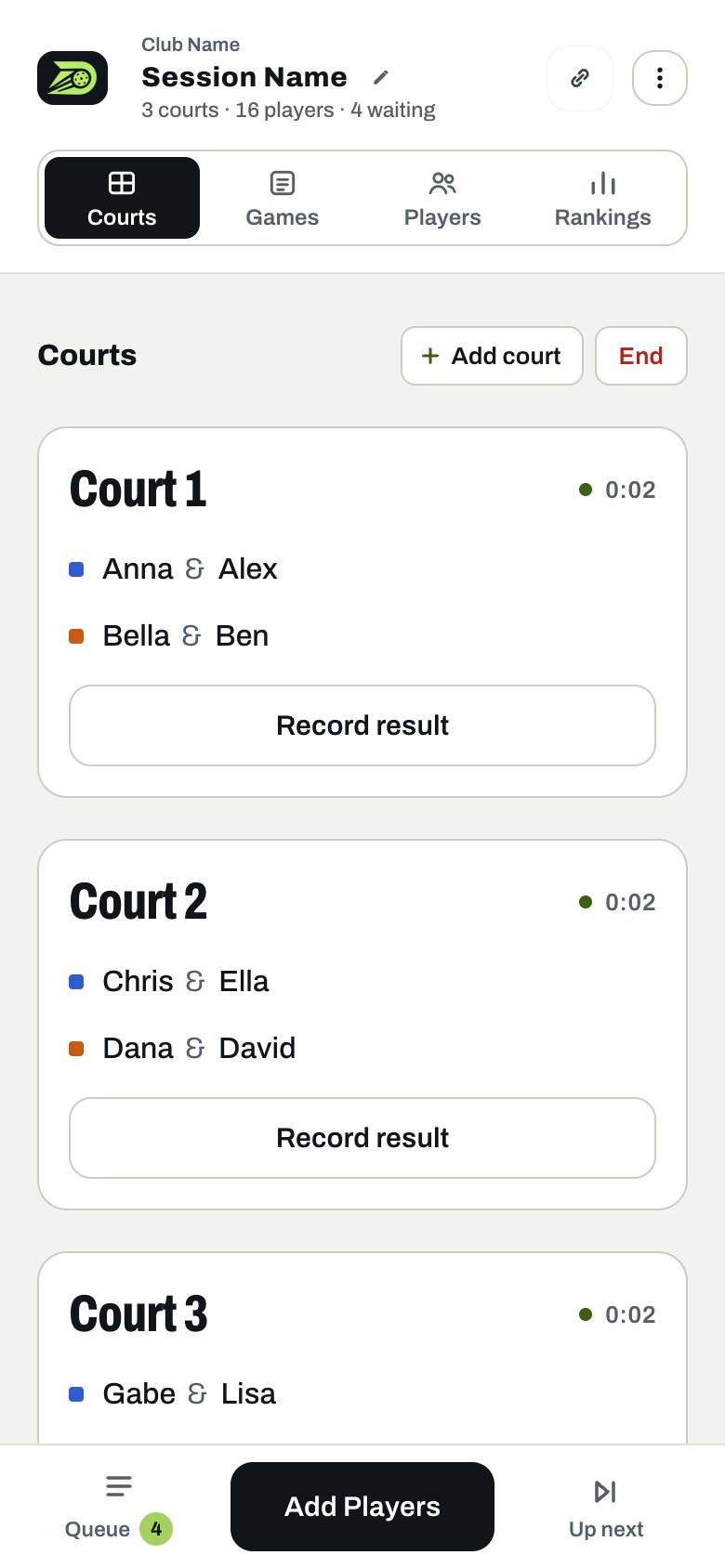
Run the courts
Courts is your home page. Dinkyo always has the next fair game ready; you decide when it starts.
- Tap Start N open courts to fill every free court at once, or Start game on one court.
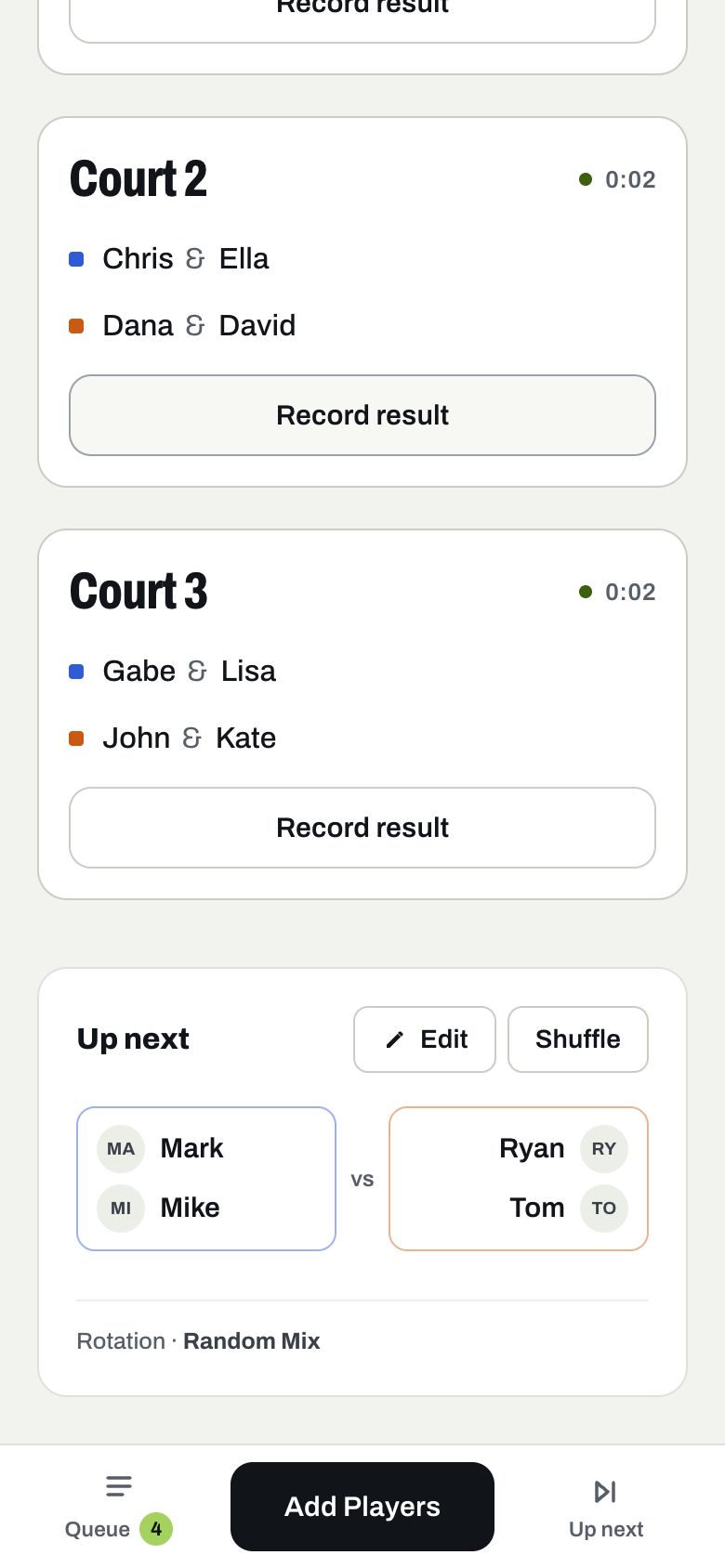
- Check Up next: the next four players and their teams. After that shows the game after.
- Want a different four? Tap Shuffle. Every organizer's phone shows the same new pick. Starting a game never reshuffles the games lined up after it.
- Use Send to court to choose which court they go to, or Pick players to choose the four yourself.
- A player didn't show, or needs a break? Tap their name on the court, then Replace player and pick someone waiting. Players already lined up are marked In Up next or In Game 2; picking one swaps the two. The player you took off goes first in the queue and joins the next new game, and the games already shown stay as they are.
- Teams need evening out? Tap a player on the court, then Switch team, and pick who trades places with them. More on swaps
- To fix a name, level or photo, tap the player and choose Edit player details.
Record results
When a game ends, record it so rankings stay right and the court opens up.
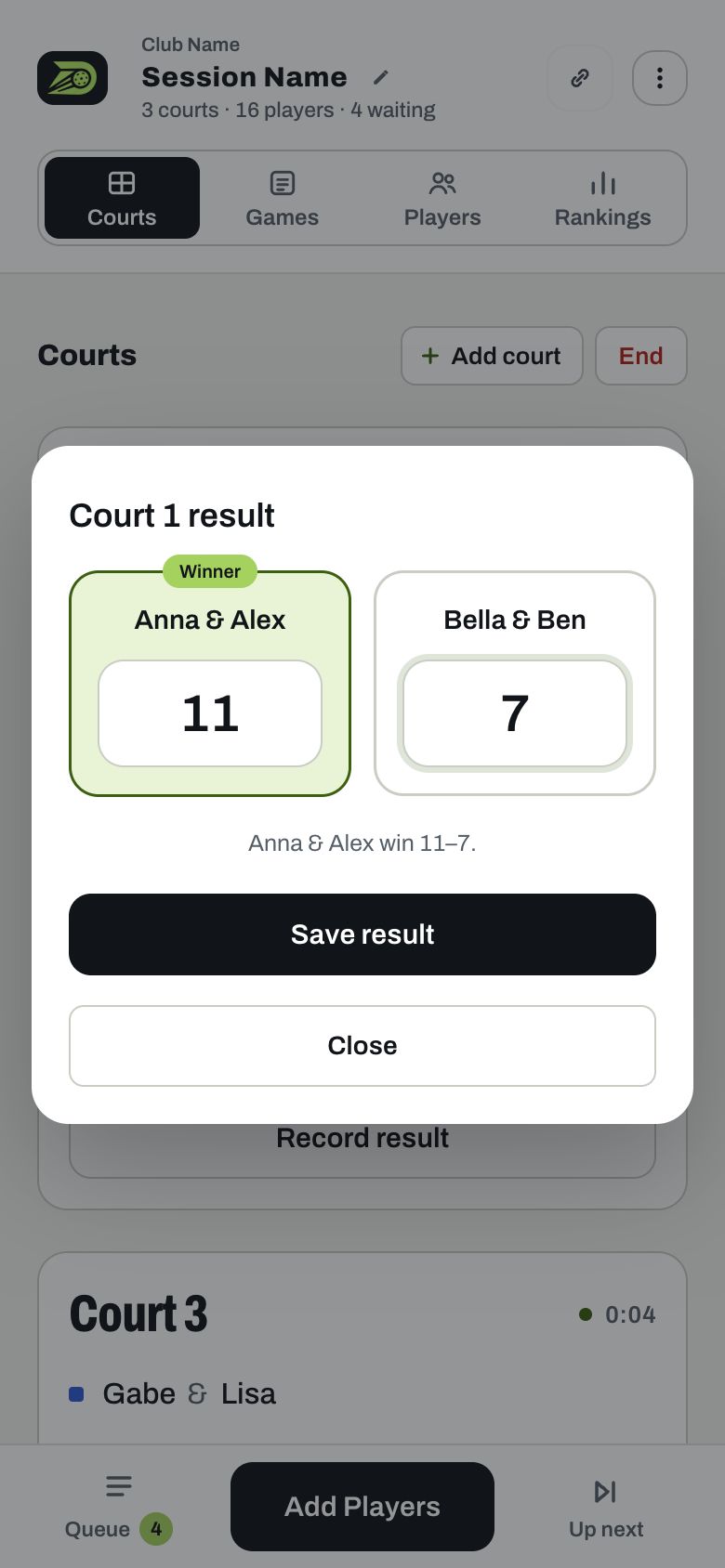
- Tap Record result on the court.
- Type both scores. The higher score wins automatically; the Winner tag shows which side.
- Tap Save result. The court is free; start the next game when the players are ready.
- Typed a wrong score? Open the Games tab and tap Edit score any time (on long nights, Show all lists every game). Rankings update by themselves.
Rankings & ending the night
Rankings update live after every game. When you're done, end the session for the big reveal.
- Open Rankings any time. Players are ranked by win %, then wins, then Game Difficulty (how strong their opponents were).
- Switch to Club leaderboard to see everyone across all your past sessions.
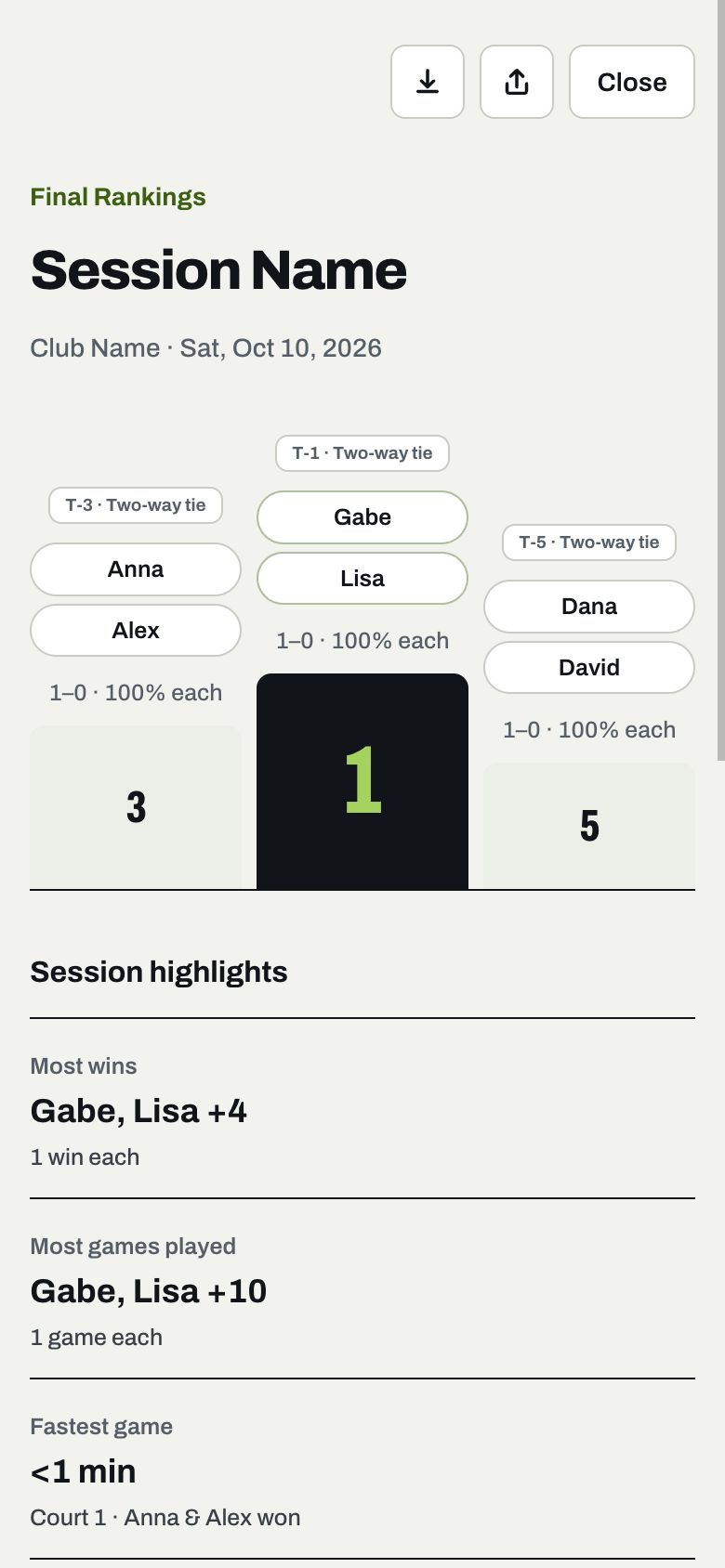
- Tap End session on Courts. Final Rankings opens with the podium, highlights and standings.
- Pick a level to see Beginner, Novice or Intermediate rankings on their own, then save the image to post in your group chat.
- Every session is kept in Settings → Past open plays, so you can view its rankings again later.
Rotation modes
In every mode, all four players come off after each game, and the players with the fewest games go first. Players who just finished rest while others can fill the court.
Random Mix
Mixes everyone. Dinkyo avoids repeat partners and opponents as much as possible, even with 40 players.
Random, Skill-Balanced
Same fair rotation, but games stay close in level:
Skill Separated
Same fair rotation, but every game is one level: Beginners with Beginners, Novices with Novices, Intermediates with Intermediates.
Fixed partners & swaps
Some players always want to play together. Link them as a fixed pair and Dinkyo keeps them on the same team all night. For doubles only.
Link a fixed pair
- Tap a player's name on the Players tab (or in the Session Setup list) to open Edit player.
- Under Fixed partner, type their partner's name and pick them from the list, then tap Save. Remove unlinks them.
- Both names get a small link tag, and courts, Up next and the TV show Fixed pair.
How the rotation treats them
- They're always on the same team, and they go on court together. If one is still playing, the other waits a moment for them.
- Fewest games still go first, and their opponents still change every game.
- In Skill-Balanced and Skill Separated, a pair with two levels plays at the higher one.
- If one partner checks out, the link pauses and the other plays as usual until they're back.
Switch team
Tap a player on a court, choose Switch team, then pick the player on the other team who trades places with them. Only that player moves.
Swap with another court
Tap a player, choose Replace player, and look under Playing now. Pick someone on another court and the two trade places. Both keep playing, and the queue doesn't change.
DUPR mode
Send your open play results to DUPR. For organizers with a DUPR club; it isn't in Playing with Friends.
- In Session Setup, set DUPR to All courts or Some courts and tap the courts that count for DUPR. You can change it later in Settings.
- DUPR courts get a small DUPR tag. Players rotate across every court as usual; nothing about the rotation changes.
- Add each player's DUPR ID once: tap Add DUPR IDs on Courts, or Add beside a name on the Players tab. IDs are saved for your club, so returning players keep theirs.
- When a DUPR game ends, Record result asks for both scores.
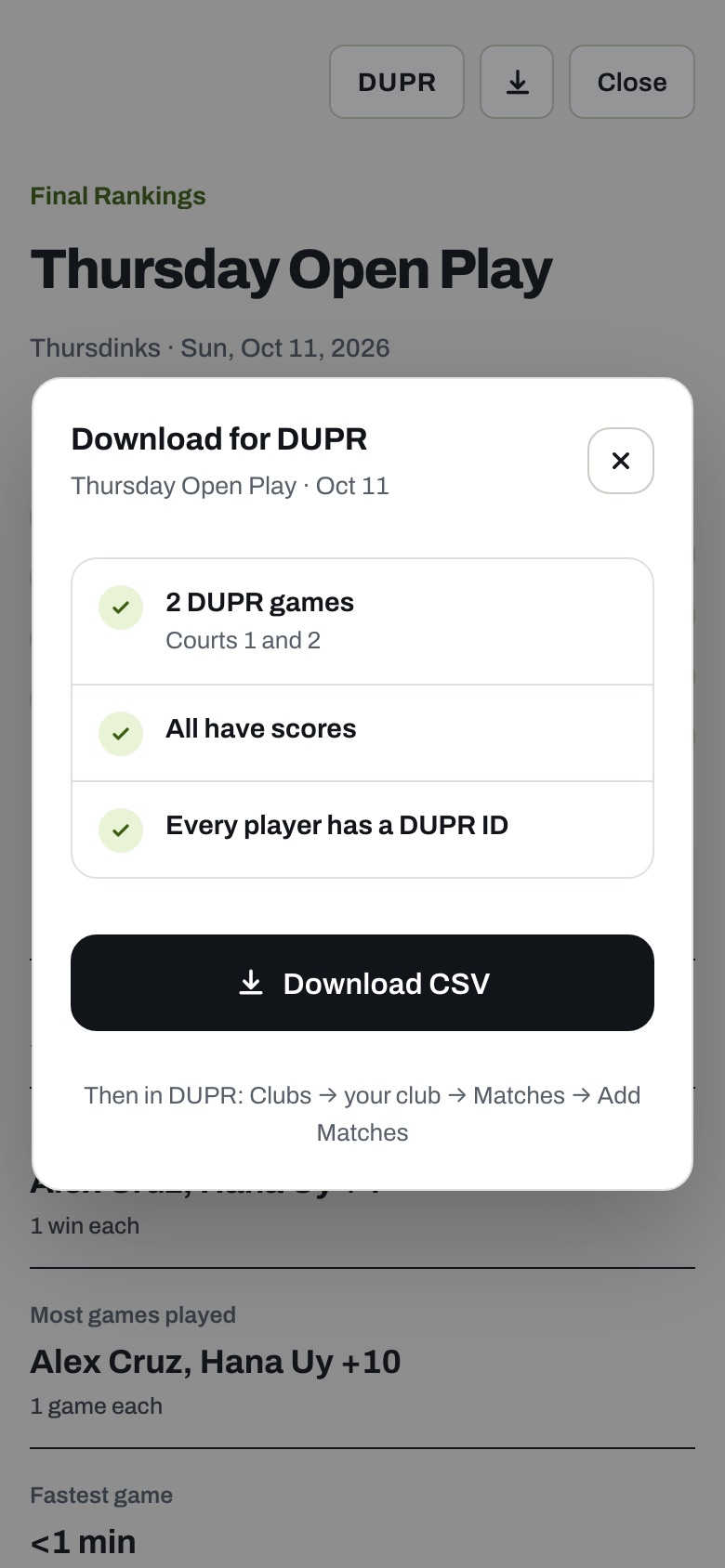
- After the session, tap DUPR on Final Rankings (or DUPR file in Past open plays). The checklist shows what's ready; fix anything amber, then tap Download CSV.
- In DUPR, open Clubs → your club → Matches → Add Matches and upload the file.
Players & the TV
Players don't need an account or an app. One link shows them everything live.
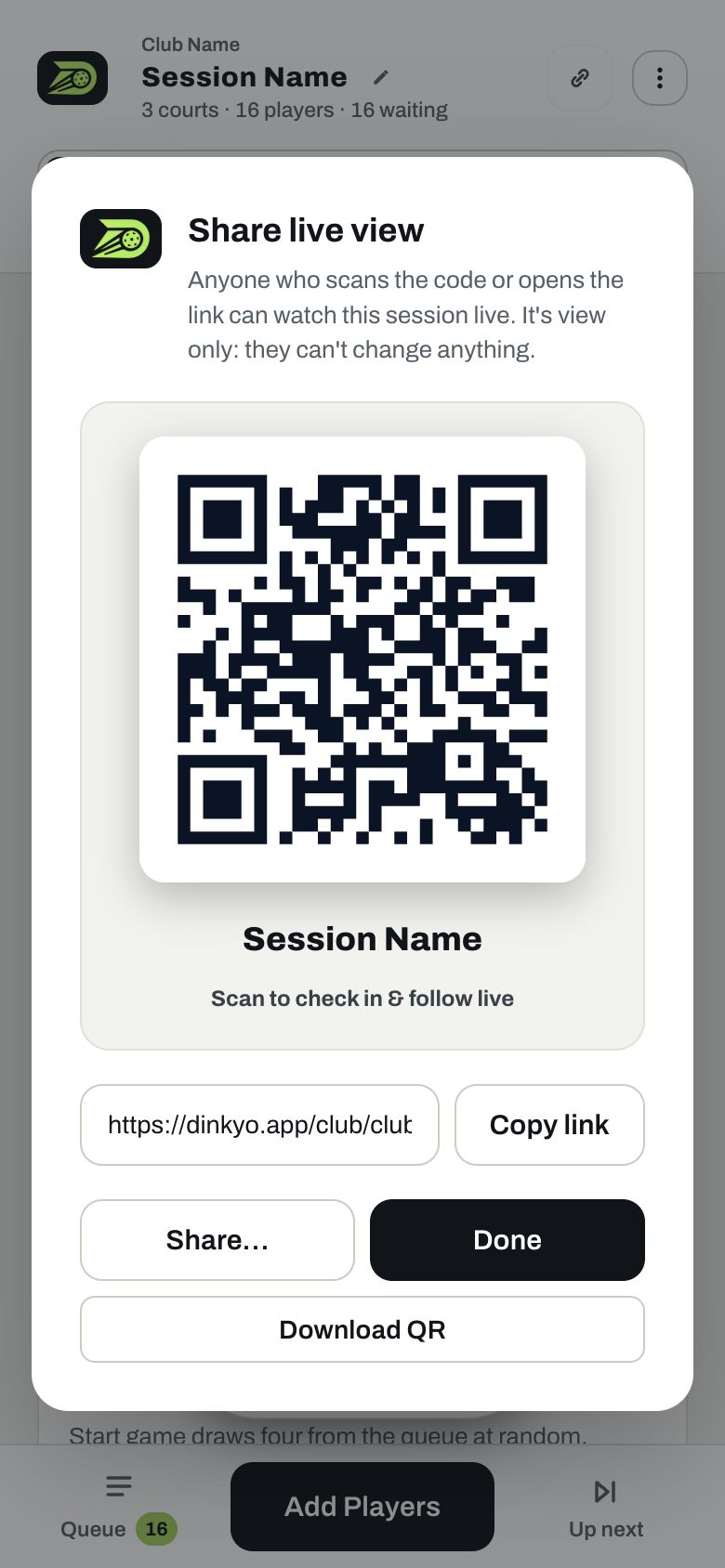
- Tap Share at the top, next to the session name. Show the QR code, copy the link or download the QR to print.
- Your club link (dinkyo.app/club/your-club) never changes, so you can print it once and use it every week.
- Players tap Find my name to follow their games and see their waiting time. When they're up next, their phone shows a banner, vibrates and chimes.
- Want alerts on the lock screen? Players tap Turn on. On iPhone, they add Dinkyo to the Home Screen first.
- On a computer by the courts, open ⋮ → TV display for a big-screen view of courts, Up next and the QR code.
Run it together: co-organizers
Co-organizers can check players in, start games and record results from their own phones. They can't rename your club or delete past sessions.
Invite by email
Go to Settings → Co-organizers and add their email. They get an invite with a Join link and are in as soon as they confirm.
Ask to join
A helper creates an account, chooses Join a club and types your club link. You tap Approve in Settings.
Common questions
The internet dropped. What happens?
Keep going. Dinkyo saves on your phone and shows an amber Offline pill. Everything syncs when you're back online.
Someone played twice in a row. Why?
Dinkyo rests players who just finished whenever there are enough others to fill the court. With only a few waiting, two who just finished may go again, so the same four don't keep playing together before everyone has met.
How do I fix a wrong score?
Open the Games tab, find the game and edit the score. Rankings update straight away.
Can I add a court in the middle of the night?
Yes. Tap + Add court on Courts. To remove one, tap the × on a free court.
Is Dinkyo free?
Yes. Organizers, co-organizers and players use it for free.
Which languages does it speak?
English, Thai and Vietnamese. Change it in the ⋮ menu. (This guide is in English.)